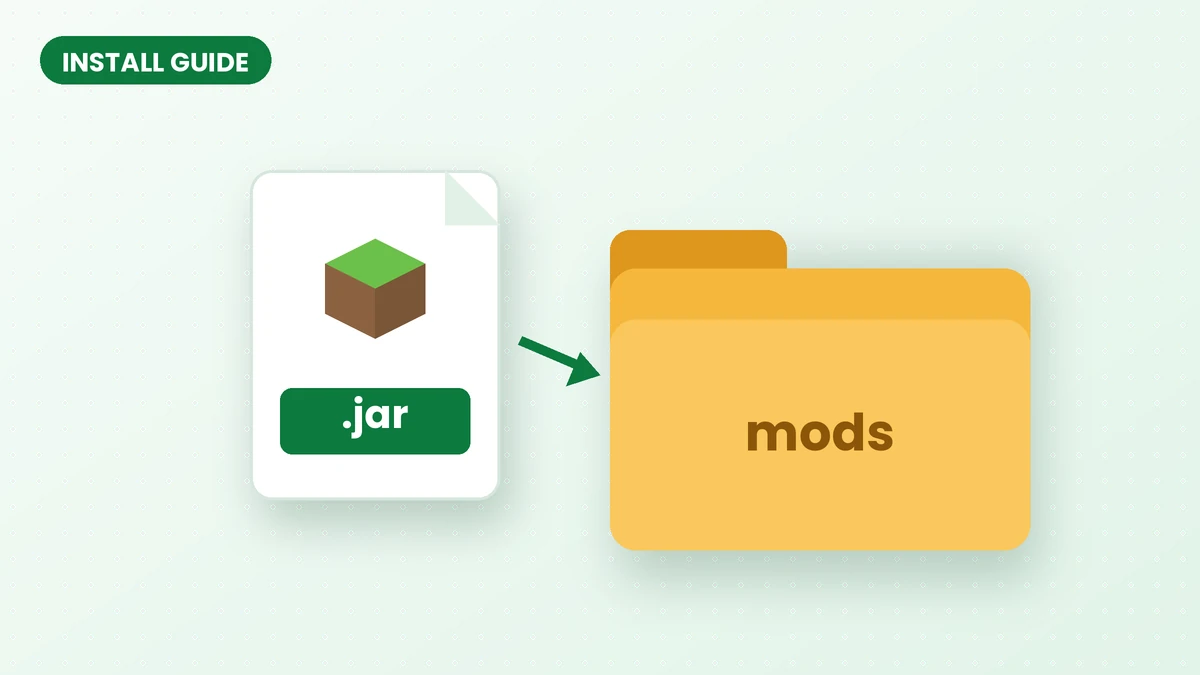
A reliable Effortless Building Mod installation starts with the right combination of Minecraft version, mod loader and mod file. This guide takes you from those initial checks to your first in-game placement, with practical checks at each stage.
Before you start: three things to check
Before changing your setup, note your Minecraft Java version and loader, then make a backup of any world you intend to use. Keeping those details together makes it easier to choose a compatible download.
- Your edition. The mod is built for Minecraft: Java Edition. It will not run on Bedrock, Minecraft PE, consoles or the Windows Bedrock app. If that is your platform, read our Minecraft PE and Bedrock guide instead.
- Your game version. The mod lists many versions on its project pages, including 26.3, 26.2, 26.1.2, 1.21.11, 1.21.5, 1.21.1, 1.20.1, 1.19.4 and 1.19.2. Note the exact version you play.
- Your loader. Builds exist for Forge, NeoForge and Fabric. Each loader needs its own file, so decide which one you are using first. Our loader comparison can help.
Step 1: Install a mod loader
Use the official installer for your chosen loader and select the Minecraft version you plan to play. Launch the new profile once, let it create its game folders, and close Minecraft before adding files.
For an existing modpack or launcher-managed instance, work inside that instance rather than your default Minecraft folder. Keep the loader and game version selected by the pack.
Step 2: Download the matching file
The homepage download section identifies the file linked by its main button. Compare its stated loader and Minecraft version with your own profile before downloading.
If your profile needs a different release, use the CurseForge files list. Filter by Minecraft version and loader, open the file details, and install any dependencies marked as required.
Step 3: Put the jar in your mods folder
Open your launcher profile and locate its game directory. Place the downloaded .jar in that directory's mods folder, creating the folder if necessary. Leave the archive intact.
Remove the previous Effortless Building jar when replacing it with a newer build. Keeping a single copy avoids loading two versions of the same mod.
Step 4: Launch and confirm it works
Start the matching loader profile and open a test world. Hold ALT to check the build-mode menu; if the shortcut has been reassigned, use the binding shown in Controls.
Choose a small Line or Wall placement before starting a larger build. Check the preview, confirm the shape and review our build modes guide for the next steps.
Playing on a server
For multiplayer, the server and participating clients need compatible installations. Coordinate the file and loader with the server owner using our server setup guide.
If something goes wrong
If Minecraft fails to launch, recheck the loader, game version and required dependencies. If the menu is missing, check the active profile and keybinds. Our troubleshooting guide separates these symptoms into specific checks.
Related guides
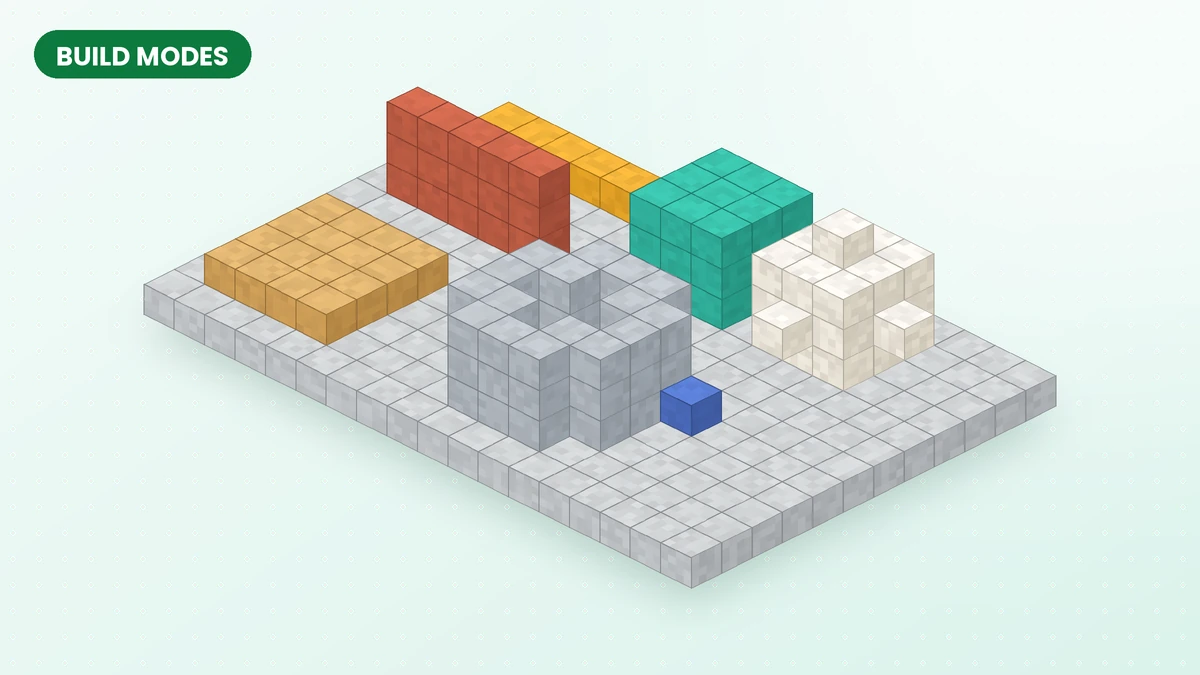
Effortless Building Mod Build Modes Explained
Choose the right Effortless Building Mod shape for foundations, walls, roofs and rounded structures, then refine the placement before confirming it.
Read guide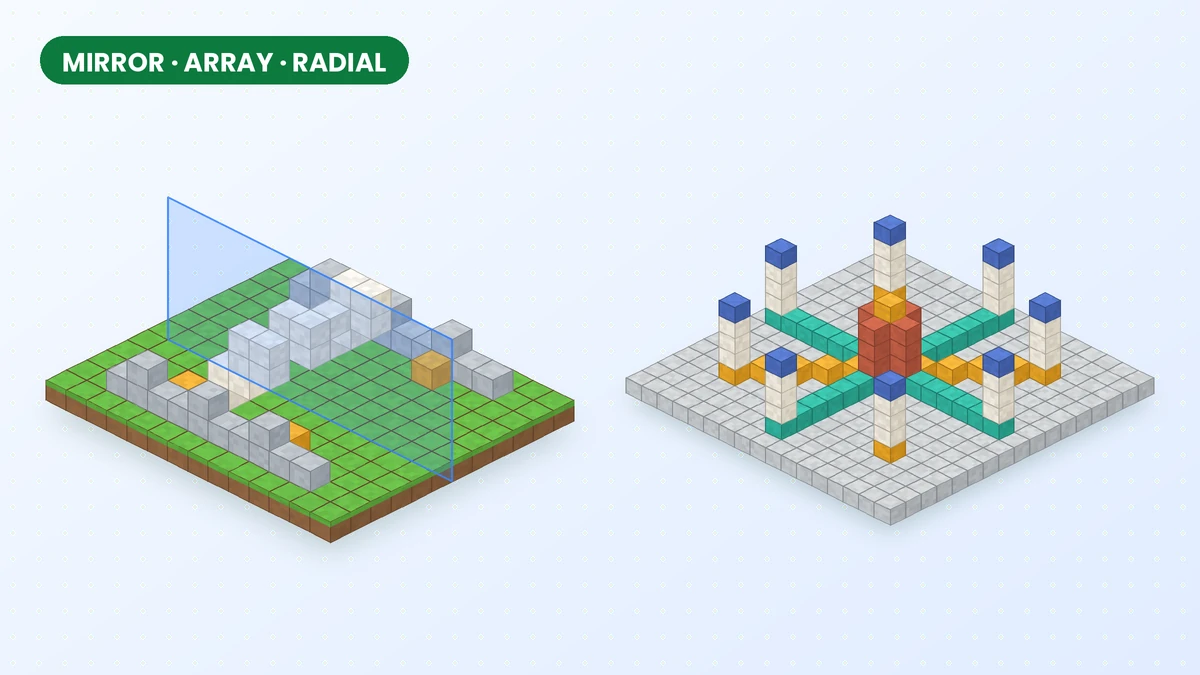
Mirror, Array and Radial Mirror in Effortless Building
Create balanced facades, repeat structural details and arrange circular patterns with the mirror, array and radial mirror tools in Effortless Building Mod.
Read guide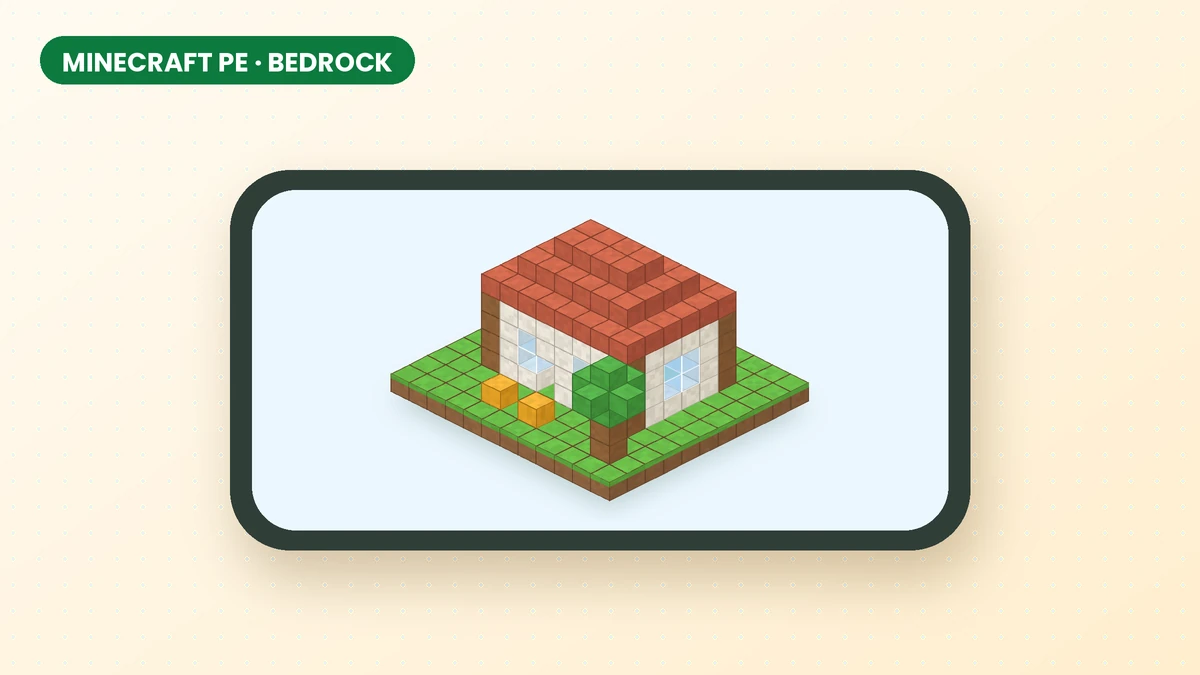
Effortless Building Mod for Minecraft PE, Bedrock and Mobile
Check which Minecraft edition you use before downloading. This guide explains the Java mod, mobile compatibility and the separate Bedrock add-on.
Read guide