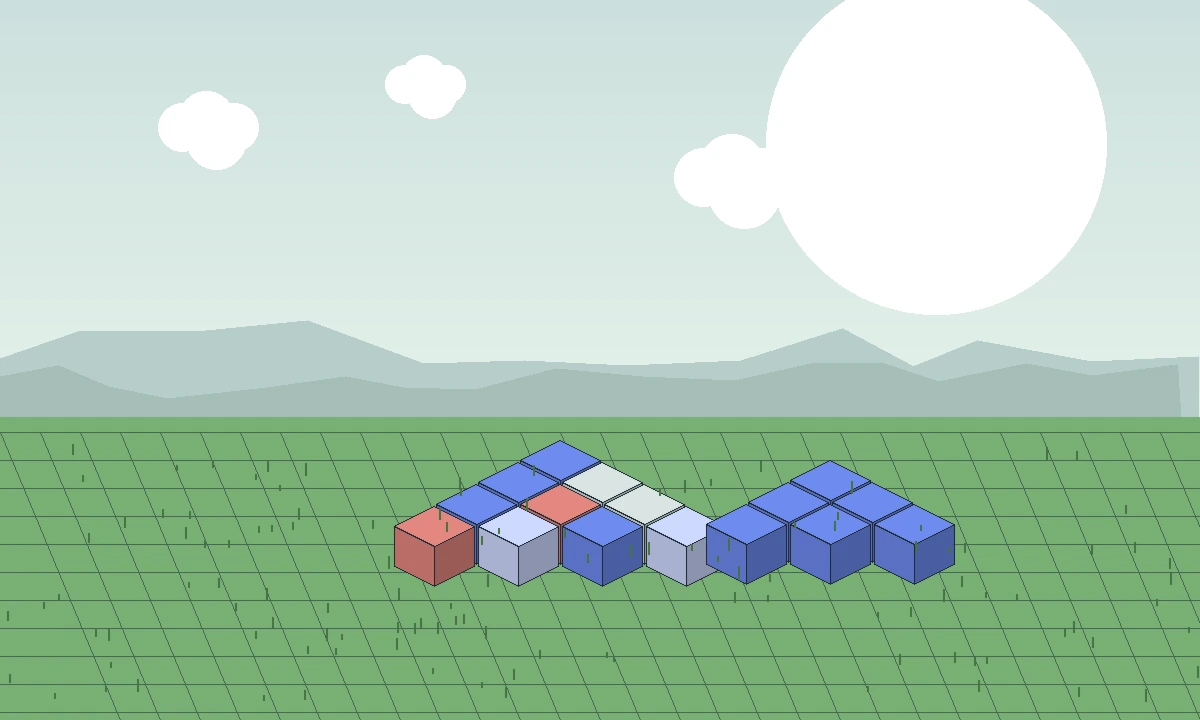
Searches for “Effortless Building mod 1.21 10” often assume every 1.21.x file is interchangeable. That is not a safe assumption. Mod loaders check version ranges, and code changes between Minecraft patch releases can require a dedicated build.
Do not treat 1.21.x as one version
A file for 1.21.11 may reject 1.21.10, and a file for 1.21.5 may be too old for a later game build. The correct indicator is the supported game version declared by the mod release itself.
If no release explicitly supports your exact version, changing the game profile to a supported Minecraft version is safer than forcing an incompatible file.
Loader compatibility is a second check
After confirming the Minecraft number, verify Fabric, Forge or NeoForge. A matching game version with the wrong loader still will not create a valid setup.
Keep a separate profile for each loader to avoid carrying incompatible dependencies between installations.
How to test a borderline setup
Use a new profile and a fresh test world. Add only the loader, required dependencies and Effortless Building first. If that launches correctly, reintroduce other mods gradually.
This clean-profile method separates core compatibility problems from conflicts created by a larger modpack.
Why older guides can mislead
Keybinds, menu layouts and supported loaders can change between release generations. A tutorial written for a much older version may describe controls that no longer exist.
Use older instructions for concepts, not as proof that the same file or menu applies to your current game.
Practical decision rule
Install only when the release page or package metadata clearly supports both your Minecraft version and your loader. If either is uncertain, pause before opening an important world.
A few minutes spent checking compatibility is much faster than repairing a broken profile.
Related guides
Continue with a guide that matches the next decision in your setup: